2016年1月20日星期三
Trusted anti-malware the UPCleaner to protect your from web threats
Surfing the web can be risky and dangerous. You never know when an interesting link will end up being infected with a virus of a spyware. Links to malicious websites, or to infected downloads are the most common ways to come into contact with computer viruses. It’s hard to avoid websites you don’t know. This is one area where a good security anti-malware software can be extremely valuable as many of them will alert you to harmful websites. If you do get a warning, do not ignore it or you may find yourself with an infected PC.
Cross infection
If there is more than one computer on your home network, you are at risk. You can get a virus from something someone else on your network does. If another person on a different computer on your home or office network downloads a virus it can easily spread to all of the connected computers and everyone will end up looking for a reliable computer repair company.
As one of the most trusted anti-malware the UPCleaner - computer cleaner is able to protect your from web threats. After opening the UPCleaner, click on the shield icon appearing at the bottom and click on the “Scan NOW” button, Computer accelerator will start scanning your computer thoroughly and show you the risky items of your PCs, if there is any vulnerable objects or disabled security options, you just need to click on the “Fix NOW” button to fix them and enable these options.
Risks in the mail
Emails are probably one of the most common ways even the most careful person can download a malware onto their PCs. Of course, you are more at risk if you are not careful about what emails you open or links you follow.
Almost all email servers now have spam folders. Use them. Send junk mail to a place you won’t even be tempted to open it. Never open emails from someone you don’t know or aren’t expecting an email from even if it manages to evade the spam filters.
However, if you think you’re safe because you never open suspicious emails, you’re wrong. It’s easy to download malware when you click on a link sent by a friend or relative that doesn’t know the link is bad. They may even have a virus or a Trojan horse on their PCs from the link themselves that is activating it in their emails.
A favorite method for spreading malware by hackers is to send it to someone’s email. Once there, it attaches itself to that person’s contact list and automatically sends it to everyone on it without the actual email account owner doing a thing. They probably won’t even know it happened unless you tell them.
Beware of messengers
Instant messengers can also bring malware to your PC. Never visit links posted in a messenger unless you are sure that they are a safe site. Do not click on unknown links even if they come from a friend or relative in a messenger. It’s always better be safe than sorry. That cute pictures, funny articles or attracting websites are not worth the cost of having your PC repaired.
Get protection
If you don’t have a good security software, you are leaving yourself even more exposed. It is important to note that even the best virus program can be breached. New viruses, Trojans and malware are being invented every day.
It’s highly recommended that you download the malware removal and run it at startup due to its powerful security features. With free system cleaner, your computer will no longer be vulnerable to malware, it would be very difficult for malware to modify the default settings of your web browser and harm your computer.
2016年1月14日星期四
Use UPCleaner to defragment your hard disk
One solution is to run disk defragmenter. This is a program that “picks up the pieces” and puts them back in order. After defragging your drive many people notice a pick up in speed. The hard drive is no longer working so hard to find all the pieces and put them back together.
To defragment your hard disk:
1.Open Disk Defragmenter by clicking the Start button . In the search box, type Disk Defragmenter, and then, in the list of results, click Disk Defragmenter.
2.Under Current status, select the disk you want to defragment.
3.To determine if the disk needs to be defragmented or not, click Analyze disk. If you’re prompted for an administrator password or confirmation, type the password or provide confirmation.
4.Once Windows is finished analyzing the disk, you can check the percentage of fragmentation on the disk in the Last Runcolumn. If the number is above 10%, you should defragment the disk.
5.Click Defragment disk. If you’re prompted for an administrator password or confirmation, type the password or provide confirmation.
Disk Defragmenter might take from several minutes to a few hours to finish, depending on the size and degree of fragmentation of your hard disk. Used pc cleaner like UPCleaner to check for any hidden programs or processes that may be running, your system continues to run slowly.You can still use your computer during the defragmentation process.
2016年1月6日星期三
PC Optimization Software Helps You Remove Startup Items
It is inevitable that as your computer ages it will soon begin to run slower and slower. While this cannot be prevented entirely, one of the causes you can control is the number of startup programs you have added to your computer. Startup programs automatically run when you start your computer and unless you manually exit them when your computer is on will run in the background. This would not be a problem if your computer had unlimited memory, but since it does not this can be one of the causes of a frustratingly slow computer.
Startup items are a huge culprit on the average computer. See all those icons in the lower right corner of your screen? Those are all being loaded on startup, and those are not all of them either! If you’re wondering why you have to wait a minute to use your computer after startup, it is because all of those items are loading after Windows has started robbing you of valuable system resources before you open your first program.
You have 2 choices here depending on your comfort level; Option 1 is basic and better than nothing. Option 2 uses a free PC optimizer that can help you identify startup items you don’t recognize.
Option 1: A simple way you can do this is to right click on an item you do not want to run in that lower right corner and look for properties, settings or options. From there look for “start with Windows” or similar and uncheck it.
Option 2: Now for the things you do not see. Simply open best pc cleaner – UPCleaner, and perform “Scan” in the clean section. Then UPCleaner will show you the startup items and the programs running in system background. Here you need a little knowledge but you can use some common sense. It is safe to remove printer startup items if you do not use your printers advanced features, for example. You could also Google some of the startup names to see what they are. With computer accelerator you have the advantage of being able to disable and item and remove it later once you know you don’t need it. Typically you find a lot of items from Java, Adobe, QuickTime and iTunes that do not need to be there.
To a common pc user, startup management can be a little overwhelming, especially for the person who simply wants to use their computer and not spend time managing it. Letting a single program do it all for you, UPCleaner is your top pick. It can do everything you want for free but to have them run automatically.
2016年1月4日星期一
Scanning UPCleaner to keep your pc personal data secure
In the absence of internet security awareness, your personal data might be disclosed. A data breach or data leak is a security issue in which sensitive or confidential data is copied, transmitted, viewed, stolen or used by an unauthorized party.
The data leakage issue has always arisen from data at rest, data in transit, email and other online communication channels, however now with the rise of information technology, data leakage is occurring with greater ease, whether by accident or malice. The data which could possibly be disclosed include social security number, credit card details, trade secrets and social network accounts.
Today, cyber criminals are developing more methods to steal your sensitive information and hinder your computer’s operation, one of the methods is to create new malware. According to Symantec, there have been more than 317 million new pieces of malware created in the last year, meaning nearly one million new threats were released into the wild each day.
New technology opens the door for new threats to your internet security. However, these web threats can be blocked by malware removal tool like the UPCleaner, it can remove malware and prevent deliberate or accidental data leakage.
Once you’ve finished scanning on your computer with the UPCleaner, you just need to click on the gear icon at the right side of privacy protection and then check the “Enable Privacy Protection” to keep your personal data secure. If malicious programs try to change the default settings of your web browsers, the free computer optimizer would block them.
Nobody likes to hear the words “I told you,” when they’re busy trying to recover from data loss. Besides using the malware removal, here are other tips to help you avoid hearing them:
1. Regularly schedule “fire drills” to restore information from backup. They are a necessity, not a frill. If you currently have no drill system, or it has gotten rusty, it’s only fair to notify everyone involved that “no-excuse” exercises are on the way. It sounds easy, but it can be a tall order, because a lot can go wrong along the chain of events needed to perform a complete backup and restore.
2. Keep your PCs in safe, dry and dust-free areas. Low-traffic locations are best to prevent physical damage to the computers.
3. Back up data regularly. Then verify the backups by actually getting the data off the tape and back into the computers.
4. Have a generator or battery back-up system. Large power surges can destroy computer equipment, but even relatively low-level bursts of energy can erase the data on hard drives. Uninterrupted power supplies give protection during lightning and electrical storms so data can be saved or backed up during an outage.
5. Protect your equipment from static electricity that can erase data or damage components. Today’s storage media is becoming more vulnerable to static discharge.
6. Use the “undo” feature. Many installation and diagnostic programs offer undo disks that can restore systems to their original configurations if things go wrong. It’s good practice to take advantage of this feature.
7. There are also software and programs that can detect impending problems within hard drives. Using them regularly can head off problems.
Try the above methods now.
2015年12月30日星期三
Registry cleaner is a great tool for repairing your windows registry
Registry cleaner is a great tool for repairing your windows registry and dealing with stability issues, but there may be problems on your PC that are caused by other factors, such as junk accumulations, incorrect system or internet settings and similar.
UPCleaner is a powerful optimizer that lets you clean out junk files, resolve registry issues, eliminate slowdown causes, clear privacy traces to protect your confidential data and so much more.
Your PC may be having signs of stability problems, such as freezes, crashes, errors popping up or application response slowdown. These issues may make your computer hard to use by significantly reducing its performance.
Windows registry cleaner will clean, repair and optimize your windows registry to eliminate errors and crashes, and to restore smooth and stable operation, so your PC will stop giving you headaches and be usable once again.
Why Use UPCleaner – Windows Registry Cleaner?
Absolutely Free
This program is totally free system accelerator with no term limitations for home or commercial use. Free regular updates included.
Gives you full control
You can review the registry entries the program finds to be corrupt and exclude any that you may want to keep for whatever reason.
Totally safe
Unless you manually uncheck the option, a restore point is created by default making it easy to roll back the changes later.
Industry-acknowledged quality.
2015年12月25日星期五
Christmas Shopping Online Safety by UPCleaner
E-shopping holds the promise of a fast and convenient shopping future, but there’s a big elephant in the room everyone is talking about: security. If you regularly purchase a product or service online, it’s essential to know the ins and outs of online payments and security in order to protect yourself from the security traps. During the Christmas holidays, more than other times of the year, a growing number of Internet users make and plan their shopping online through desktop and social networks. It is predicted that there will be a significant increase of cybercrime, mainly related to computer scams and identity theft. Here are 5 cyber security tips to ensure that your online holiday shopping is safe.
DO NOT CLICK On Suspicious Links
Malicious links are sent by scammers who look more real than the original ones. As these links are specifically of the well-known sites like eBay and Flipkart, many online users fall victim. The safest way of not getting tricked by these would be NOT to open them if provided via social media sites, messages or emails from unknown sources.
Make sure the website is secure
The most important thing to do when you’re entering credit card details online is to make sure this data is sent securely. This means that, instead of your browser just sending the 16-digit card number in clear, it is encrypted, so no one sniffing network traffic can intercept it. There’s an easy way to check this in web browsers: They all have a way of showing you that a secure HTTPS connection has been made.
In general, web browsers display a padlock icon. Below, you can see how this looks in Safari, Chrome, and Firefox.
web browsers display a padlock icon
Make sure that any time you are entering information—such as credit card or bank account information—you see the padlock. You should also look for this any time you go to a website which offers to let you pay with PayPal; the login page for PayPal should always indicate that it is secure.
Always use strong passwords
Most websites that sell you things require you to create an account when you make your first purchase. You enter your name, your address, your phone number, and some payment information. The website then asks you to enter a password. Make sure to use a secure, unique password for each website. Always try to avoid easy to crack passwords by including a combination of upper and lowercase letters, numbers and special characters in your password.
Don’t use the same password that you use for other websites; if someone gets a hold of that password by hacking one company’s servers, they’ll try to use it on other major merchants’ websites. And if those websites have stored your credit card number, cyber-criminals will be able to make purchases on your dime.
Never shop on public Wi-Fi networks
It might save you time to do some shopping when you’re in an airport, a coffee shop, or some other location on a free, public Wi-Fi network. But this isn’t a good idea. Unless you use a VPN (virtual private network), which encrypts all data from your computer or mobile device, people can sniff the network, grabbing data to look for usernames, passwords, credit card numbers and more.
Protect your web browser from malware and phishing scams
In addition to being careful of the procedure while shopping online, you will also need a safe program to protect your web browser. There are lots of brilliant programs which may secure your online shopping, such as Upcleaner – the malware removal tool with many useful features. It periodically checks and fixes all vulnerabilities of your browser. Any malicious add-ons installed without your knowledge can be removed with a single click. With UPCleaner, the safety and privacy of your system optimizer is always under the highest level of protection.
So, enjoy your holiday season, but use these tips to stay safe shopping online, and make sure the whole holiday season is festive.
2015年12月24日星期四
Take UPCleaner as Your Web Christmas Gift!
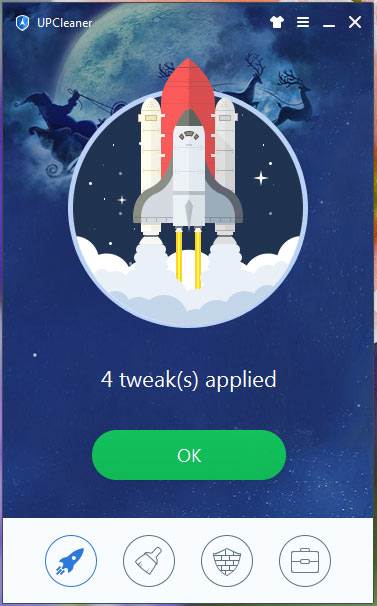
In addition to being careful of the procedure while shopping online, you will also need a safe program to protect your web browser. There are lots of brilliant computer optimizer programs which may secure your online shopping, such as Upcleaner – the free pc optimizer with many useful features. It periodically checks and fixes all vulnerabilities of your browser. Any malicious add-ons installed without your knowledge can be removed with a single click. With UPCleaner, the safety and privacy of your pc cleaning are always under the highest level of protection.
I believe many of you have experienced various kinds of slow-running PC problems in the past. In fact, a majority of them can be easily fixed by IT technicians with a decent operating system knowledge base. As a result, some people started to try out a sort of different optimization tools, and just hoping magic will happen with their fingers crossed. However, they usually don’t have their luck. As a tech-savvy netizen, I think it’s my responsibility to share with you my final answer to these problems, the UPCleaner (Windows registry cleaner). It is not yet well-known but definitely deserves much more credits in my opinion. I just learned that UPCleaner 1.3 has already been available for download from its official website. The main features of UPCleaner include: speeding up your computer by applying customized professional tweaks, locating junks files from anywhere of your system, removing malicious add-ons sneaked into your browser without your knowledge nor permission, as well as protecting your privacy from openly exposed on the Internet. Furthermore, UPCleaner also provides some very easy yet useful widgets such as Power Eraser, Browser Protection, and Internet Speed Test.
The latest version of UPCleaner has brought us cloud technologies to enable even deeper cleaning of your computer. A Christmas theme together with two more floating-window skins are introduced to its already rich collection of skin center. If you are looking for a brilliant computer cleaner, I would recommend you to try UPCleaner, an easy to cleaner for pc with great power under user-friendly interface.
UPCleaner Performance
– Free up memory and disable unnecessary startup items.
– Remove all sorts of junk files stored on disk drives with cloud technology.
– Offer real-time, comprehensive protection for web browsers.
– Offer a rich list of skins for both the main screen and the float window.
– 100% Safe and efficient.
订阅:
博文 (Atom)